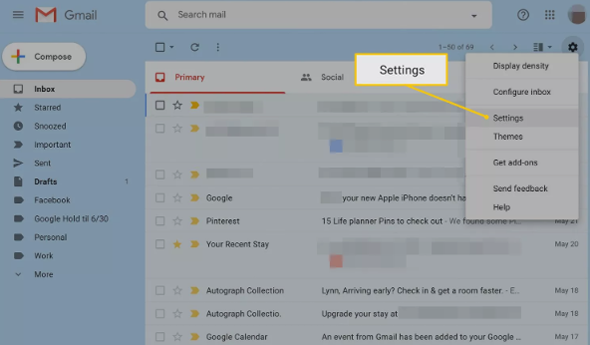
Open Google Mail/Gmail in a web browser and login. Click the gear icon in top right and select Settings from the drop-down menu.
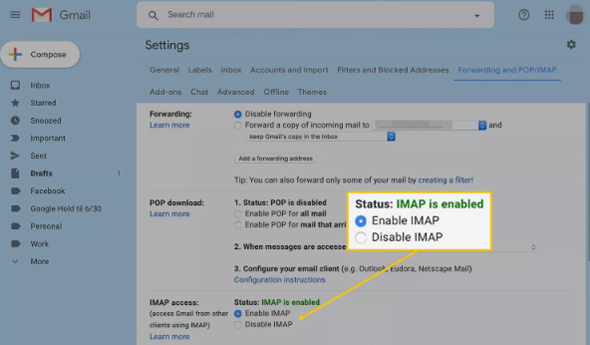
Select the Forwarding and POP/IMAP tab and in the IMAP access section, select Enable IMAP.
Leave the other settings on the default selections.
Select Save Changes.
Gmail account setup on the iPhone
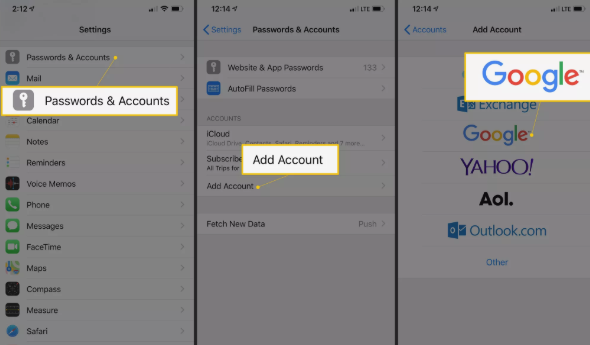
On the iPhone home screen, open Settings.
Go to Passwords & Accounts > Add Account, then choose Google.
Note: These screens are named differently on older versions of the Mail app. Choose Mail > Contacts > Calendars, then go to Add Account > Google Mail.
In the Accounts and Import section, there is an option to Add a mail account. Click that option to begin adding your email account.
Entering your Gmail credentials
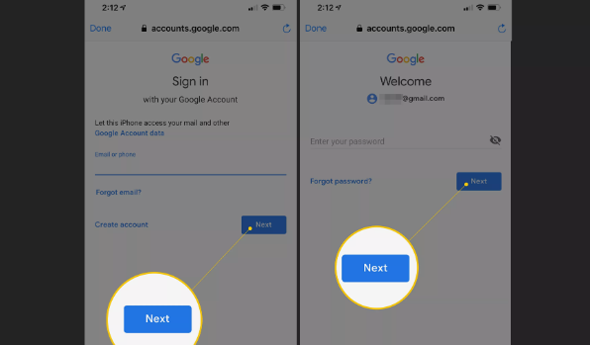
Enter your Gmail email address. Tap Next.
Enter your Gmail email address password. Then tap Next.
If a message about 2-step verification appears, follow the directions on the screen. You’ll only see this if 2-step authentication is enabled for your Gmail account.
Turn on the Mail toggle switch to ensure that your email can be used. You can also enable other items to sync contacts, calendar events, and notes.
At this point, setup is complete and you can exit by pressing the Home button.