The process of setting up a Google account in macOS Catalina, macOS Mojave, macOS High Sierra, macOS Sierra, OS X El Capitan, OS X Yosemite, and OS X Mavericks in the Mac System Preferences uses the automatic configurations already in existence in the operating system:
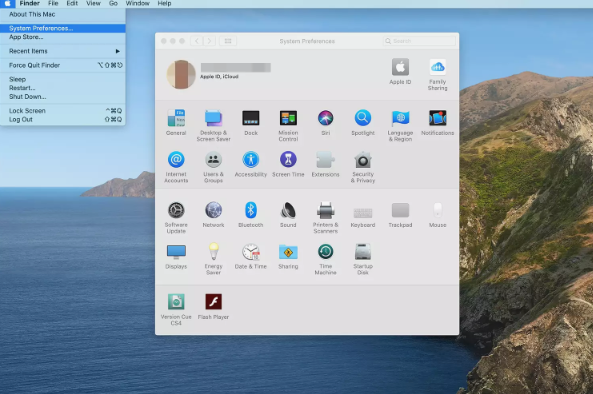
Launch System Preferences by clicking its icon in the Dock or by selecting System Preferences from the Apple menu.
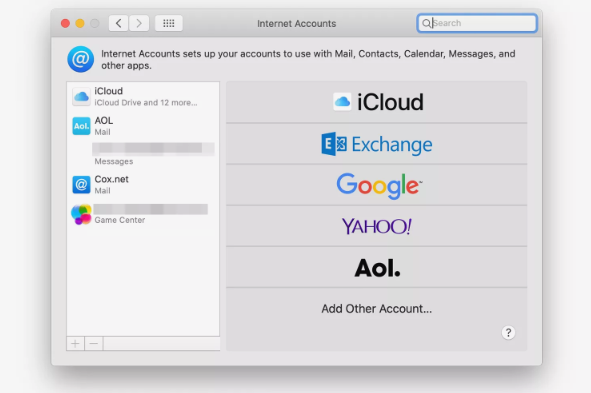
Select Internet Accounts.
In the Internet Accounts pane are email and social media account types that are compatible with the Mac. Choose the Google icon.
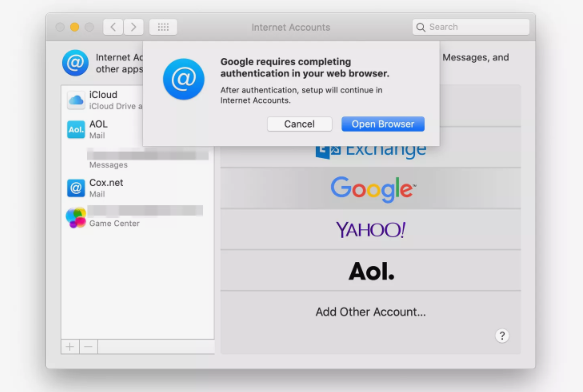
Select Open Browser when prompted to do so in the drop-down window.
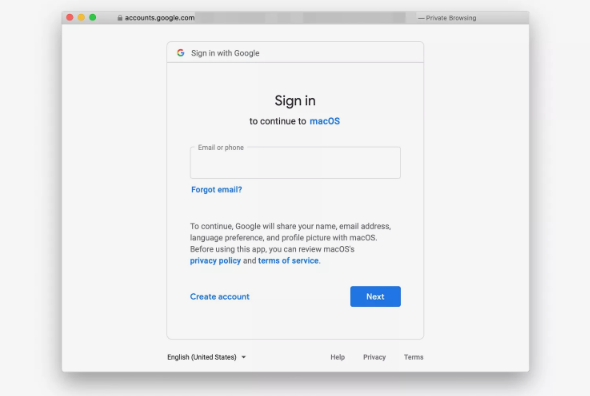
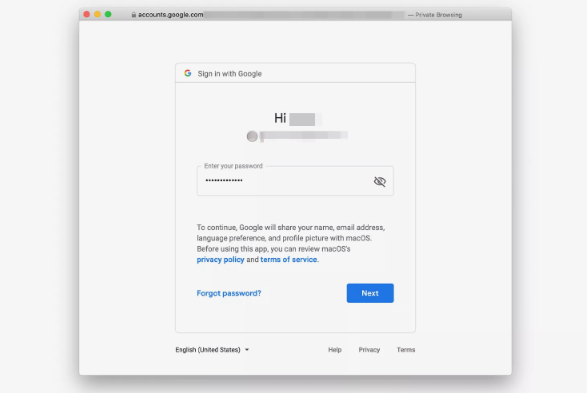
Enter your Google account name (email address) in the window that opens and click the Next button.
Enter your Google account password and then click Next or Set Up (depending on your OS version).
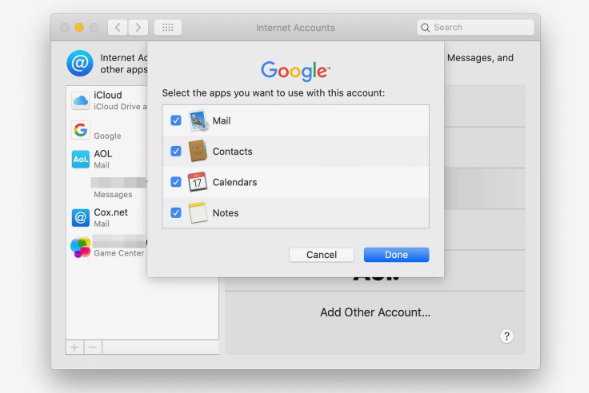
The drop-down panel changes to display a list of apps on your Mac that can make use of your Google account. Place a check next to Mail and, optionally, next to any of the other apps and click Done.
Your Google email account is automatically set up in the Mail application.
Note: You can also access the Internet Accounts preference pane by launching the Mail application and selecting Mail > Accounts in the menu bar.
Setting Up Gmail in OS X Mountain Lion and OS X Lion
Setting up Gmail in OS X Mountain Lion and OS X Lion differs slightly from later versions of the operating system.
Launch System Preferences by clicking on its Dock icon or by selecting System Preferences from the Apple menu.
Select the Mail, Contacts & Calendars preference pane.
Select Gmail.
Enter your Gmail email address and password and then click Set Up.
The drop-down window displays a list of apps on your Mac that can make use of your Gmail account. Place a check next to Mail and click Add Accounts.
If You Use Older Versions of OS X
If you use a version of OS X Snow Leopard or older, you can set up Mail to access your Gmail account, but you do so from within the Mail application instead of from System Preferences.
Launch Mail and select Add Account to open the Add Account screen.
Enter your Gmail email address and password. The Mail application recognizes the Gmail address and offers to set up the account automatically.
Place a check in the Automatically set up the account box.
Click the Create button.
That’s all there is to it. Mail is ready to grab your Gmail.
How to Access Gmail in the Mail Application
After you set up your Gmail account, open the Mail application on your Mac by clicking its icon in the Dock. In the left column, under Inbox, you’ll see Google listed along with Apple’s own iCloud mail and any other mail accounts you’ve entered. Click on Google to read and reply to your Gmail.