Note: your device’s icons and menu layout may appear different than our examples.
IMPORTANT: Finish the steps on the Start Here page before proceeding
Setting up a new account
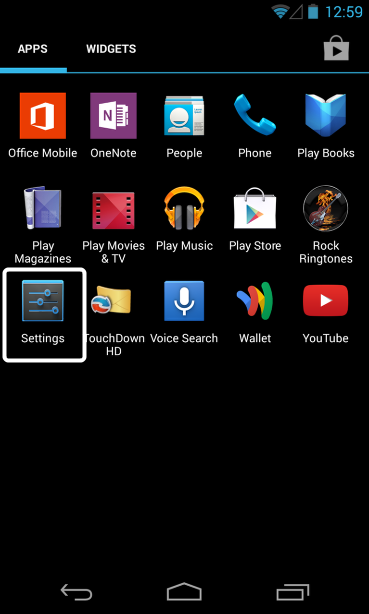
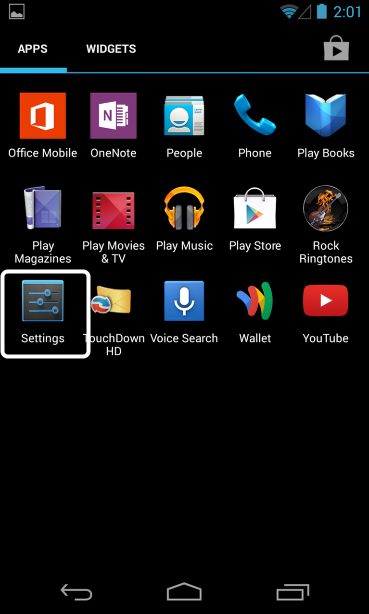
Unlock your device, then tap “Settings”.
Settings Menu
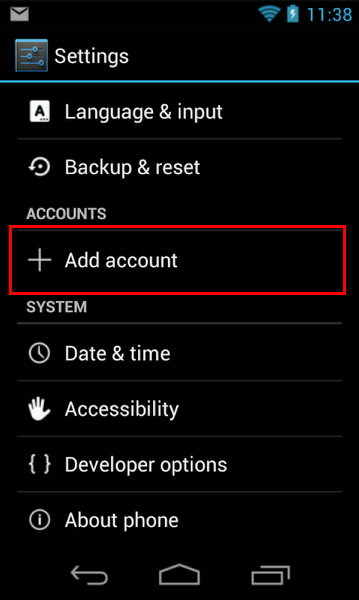
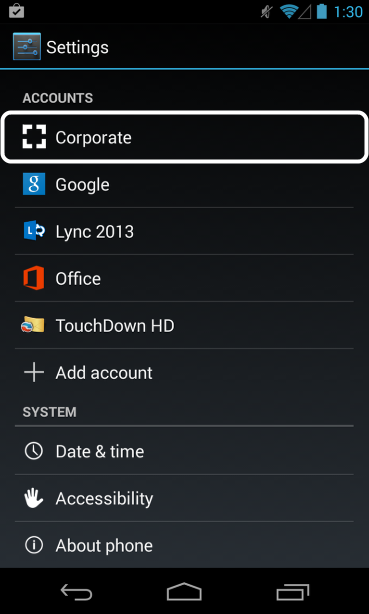
From the Settings menu, tap “Accounts” (this can differ depending on your phone, may be called “Email”)
Next, tap “Add account”
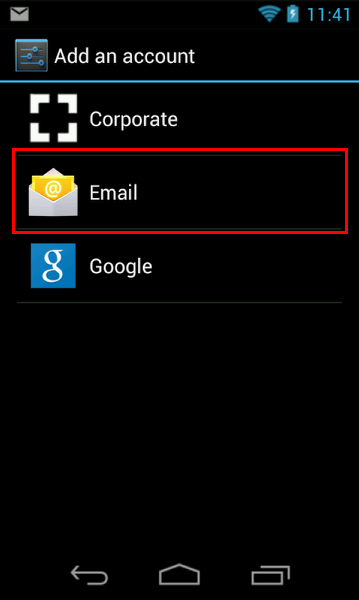
Email Type
Select Email.
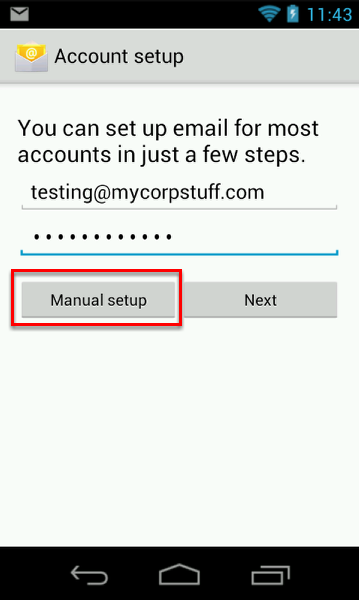
Enter your email address and password. Tap Manual setup.
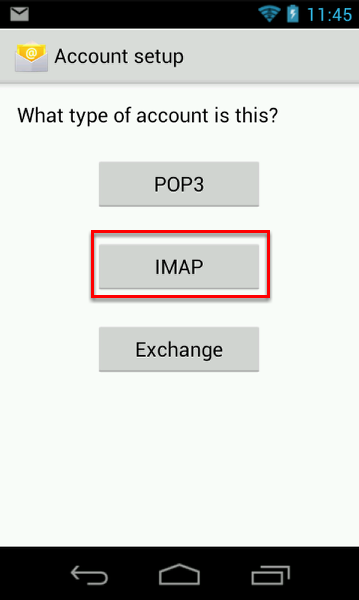
Type of Account
Tap IMAP as your account type.
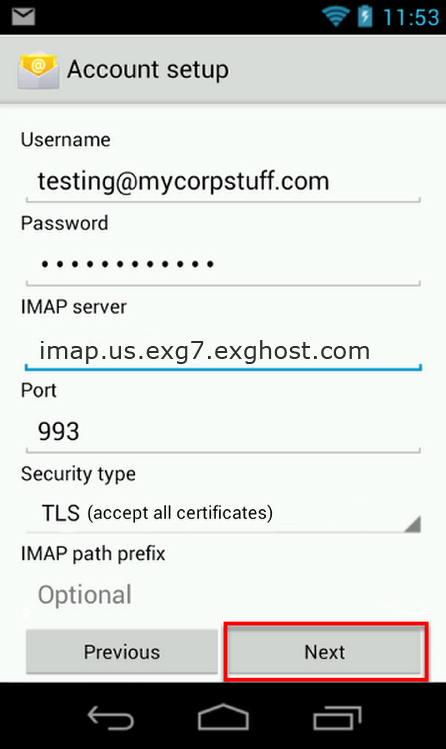
Enter Server Information
Incoming Mail Server
Username: Enter your email address
Password: Enter your email password
IMAP server/Incoming Mail Server: imap.us.exg7.exghost.com
Port: 993
Security type: TLS (accept all certificates)
Tap Next
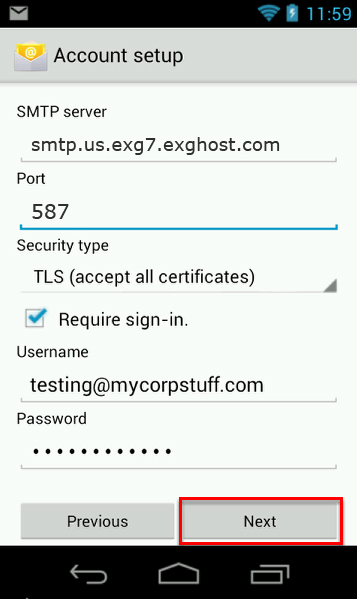
Outgoing Mail Server
SMTP server/Outgoing Mail Server: smtp.us.exg7.exghost.com
Port: 587
Security type: TLS (accept all certificates)
Username: Enter your email address
Password: Enter your email password
Once the server information has been added, tap Next.
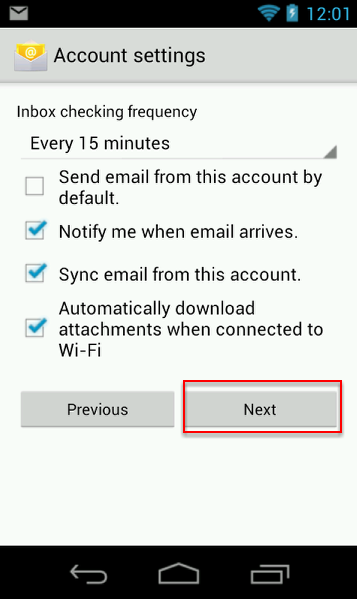
Sync Settings
Select the services to synchronize and tap “Next”.
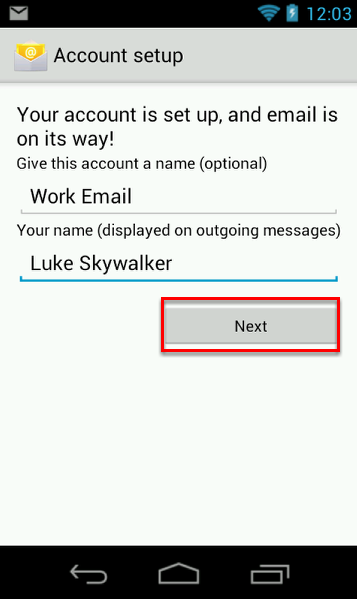
Set your outgoing display name and click Next
Email Sync
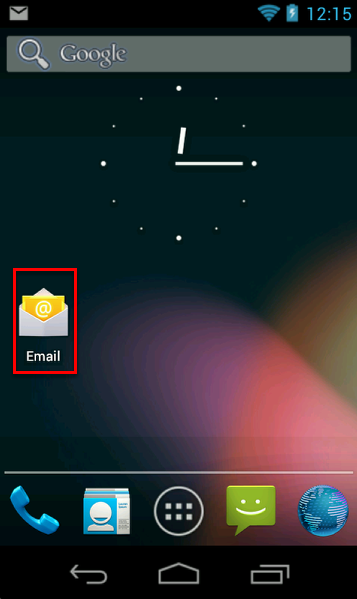
Tap the Email app.
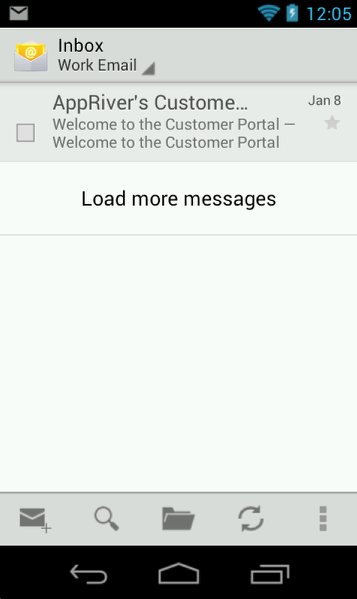
Once opened, your email will begin to sync. This process will take several minutes depending on how much data you have and your mobile connection speed
Congratulations! Your new email account has been setup.