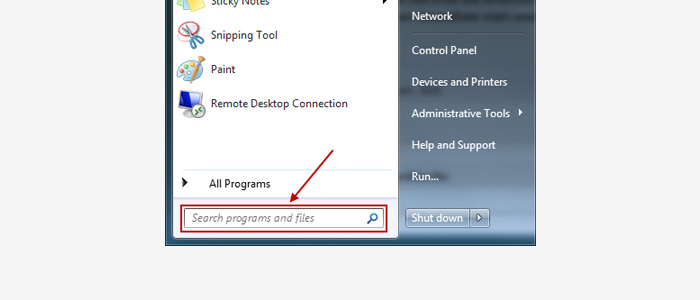
Click the Windows Start Button and search for Control Panel, or click on Control Panel in the Start Menu.
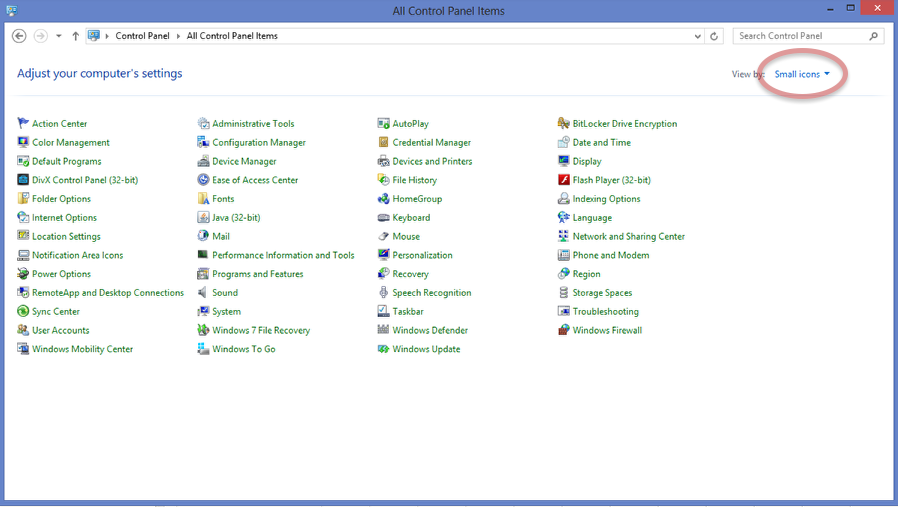
At your computer’s Control Panel, make sure your view is set to “Large” or “Small Icons”.
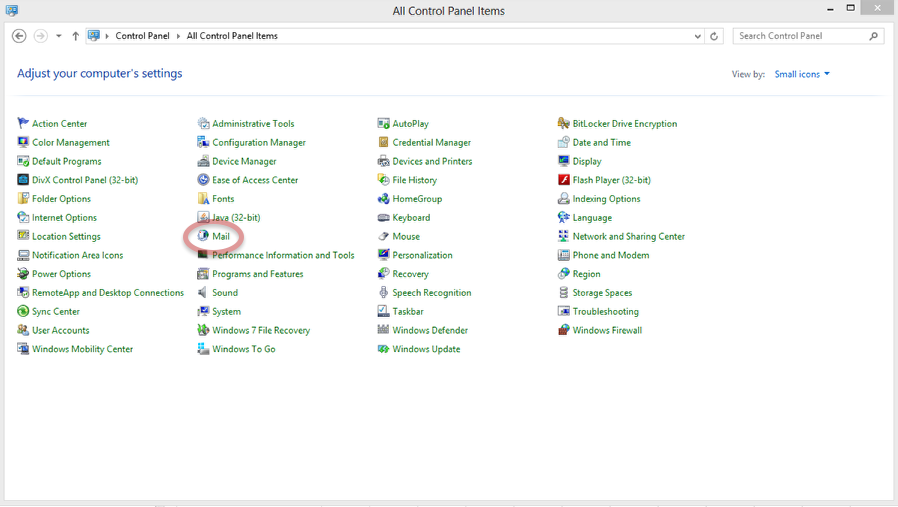
Launch “Mail”
Launch the “Mail” Application from your system’s control panel.
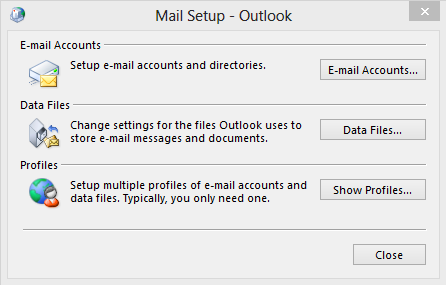
Mail Management Option Selection
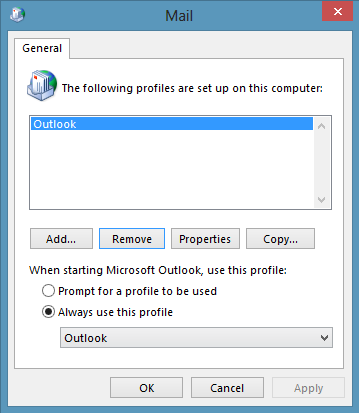
Click the“Show Profiles” button.
Profile Management Area
Select “Add” to create a new Outlook profile.
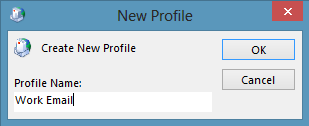
Naming the New Profile
Name your profile, example: “Work Email” and select “OK”
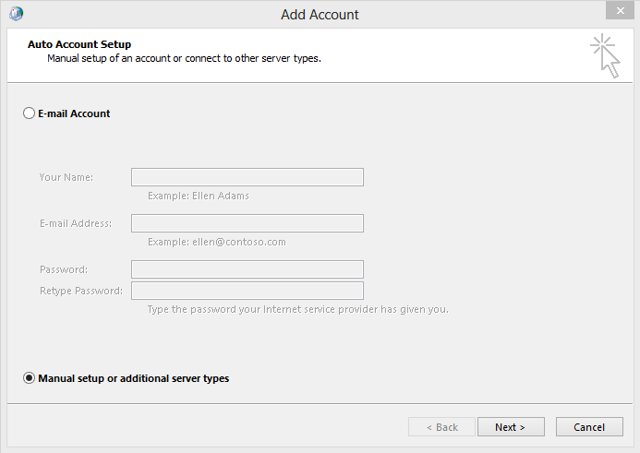
Select Manual Configuration
Select the radio button for “Manually configure server settings or additional server types” and click “Next”. [For Outlook 2010 in the Add New Account window, select the Manually configure server settings or additional server types button and click Next >.]
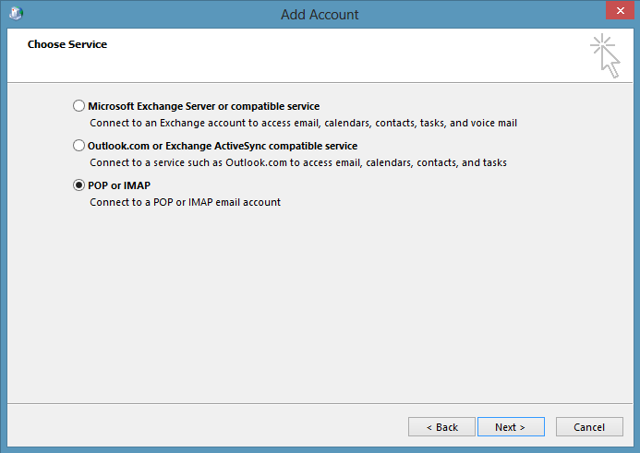
Choose Service
Select “POP or IMAP” and click “Next” (For Outlook 2010, select the “Internet E-Mail” option and click “Next”)
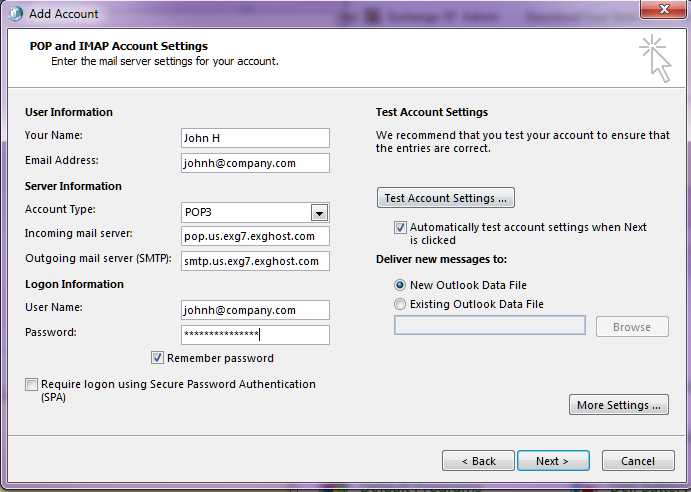
Add Account
Your Name: Enter your name
Email Address: Enter your email address
Account Type: Choose POP3 (or POP)
Incoming mail server: pop.us.exg7.exghost.com
Outgoing mail server: smtp.us.exg7.exghost.com
User Name: Enter your email address
Password: Enter your email password
Click More Settings…
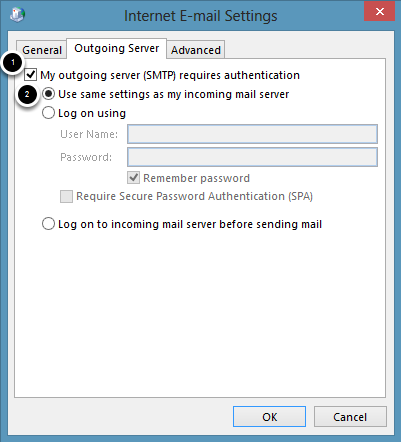
Outgoing Server
Click on Outgoing Server tab.
Check My outgoing server (SMTP) requires authentication
Select Use same settings as my incoming mail server
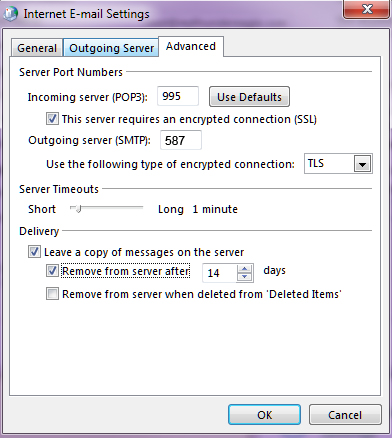
Advanced Tab
Click on the Advanced tab.
Enter port number 995 in the Incoming server (POP3) field
Check This server requires an encrypted connection (SSL)
Select TLS on Use the following type of Encrypted connection (under Outgoing server)
Enter port number 587 in the Outgoing server (SMTP) field
Click on OK when finished.
Click Next
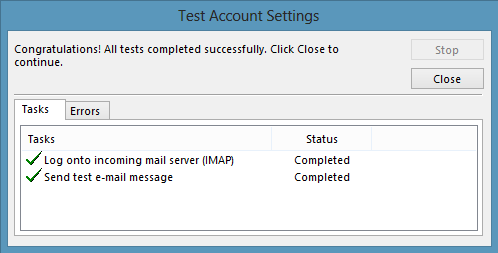
Test Account Settings
If your settings are correct you will see green checks. If any of the steps fail go back and double check the server settings and password.
Click Close when finished.
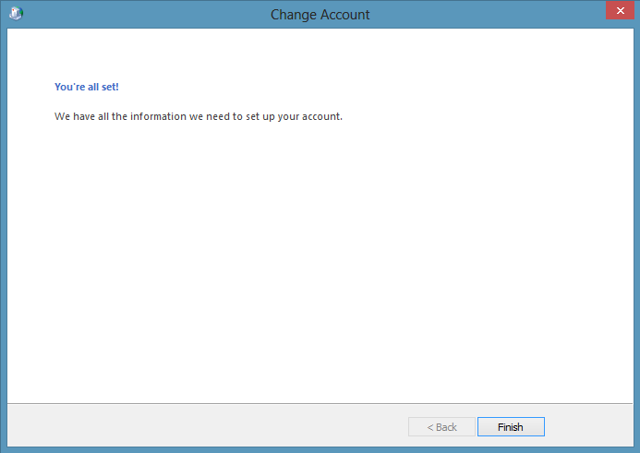
Click Finish.
Mail Profiles
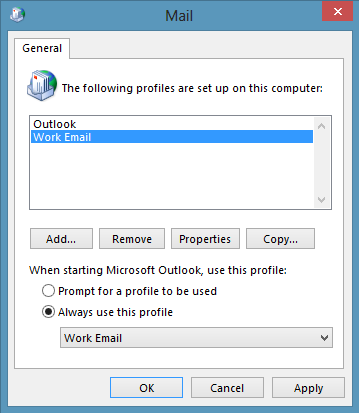
If you would like Outlook to open the new profile by default whenever Outlook is opened, check the button for Always use this profile and select your new profile from the list and click OK.
If you would like to toggle between the profiles and be prompted every time Outlook is opened for a profile selection, click Prompt for a profile to be used and Outlook will ask which profile you would like to use when opened.
Click Apply and OK when finished.
Congratulations! You have successfully setup Outlook.