Email Setup for Outlook 2016 (IMAP)
Setting up Outlook Manually
IMPORTANT: Finish the steps on the Start Here page before proceeding
Open “Control Panel”
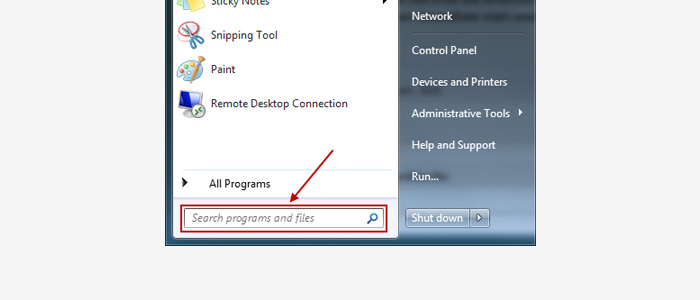
Click the Windows Start Button and search for Control Panel, or click on Control Panel in the Start Menu.
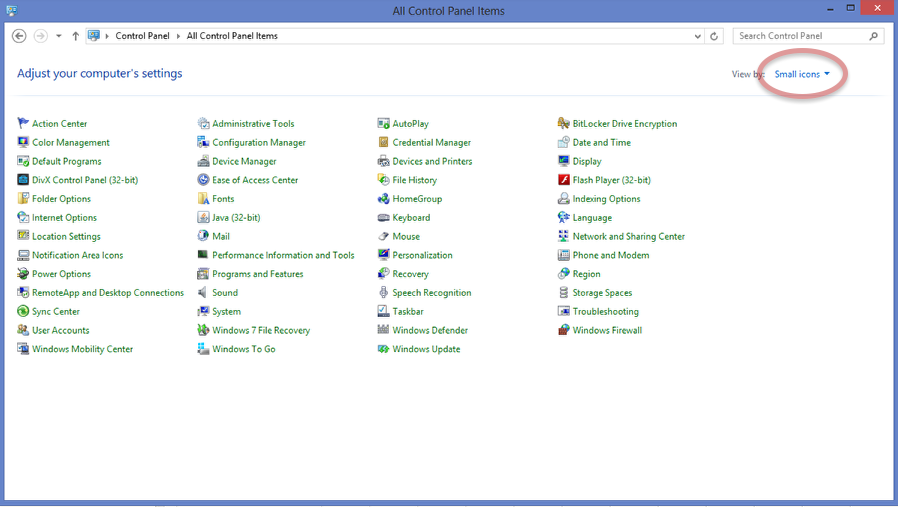
At your computer’s Control Panel, make sure your view is set to “Large” or “Small Icons”.
Launch “Mail”
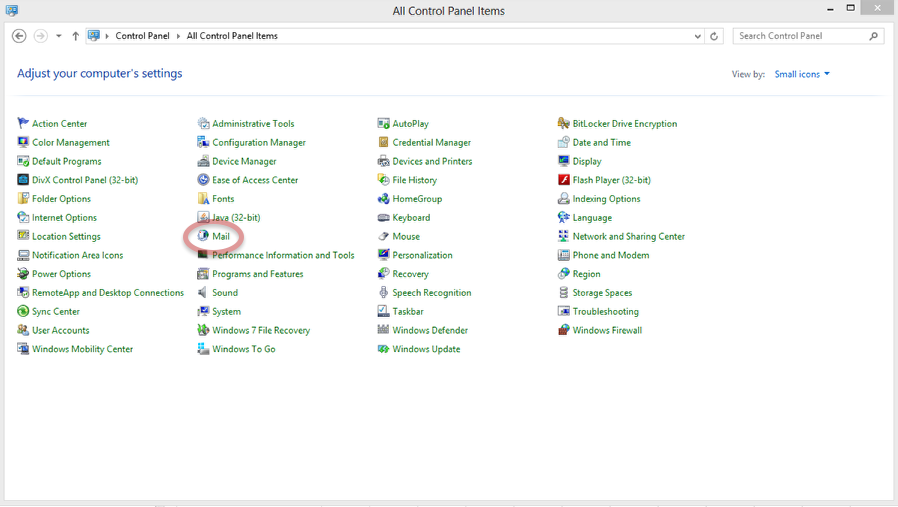
Launch the “Mail” Application from your system’s control panel.
Mail Management Option Selection
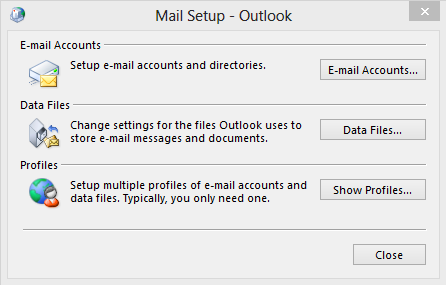
Click the“Show Profiles” button.
Profile Management Area
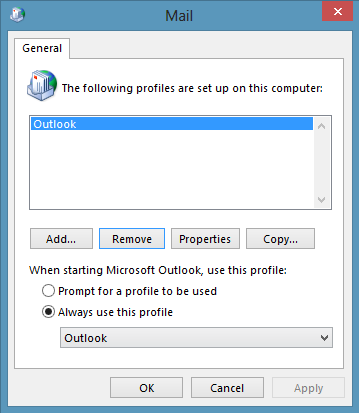
Select “Add” to create a new Outlook profile.
Naming the New Profile
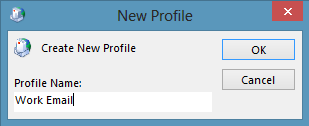
Name your profile, example: “Work Email” and select “OK”
Select Manual Configuration

- Enter your email address in the text field.
- Click the arrow icon next to Advanced options.
- Check the “Let me set up my account manually” box.
- Click the Connect button.
Choose account type

Select “IMAP” and click “Next”
Add account settings

- Under Incoming mail server, enter imap.us.exg7.exghost.com
- Next, add Port 993 to the right.
- Encryption method should be set to SSL/TLS
- Under Outgoing mail server, enter smtp.us.exg7.exghost.com
- Next, add Port 587 to the right.
- Encryption method should be set to STARTTLS
NOTE: On Outlook 2016, if you receive an encryption error, you can use a lower encryption method.
- Click the Next button.
Entering your email password

- Enter your email password into the text field.
- Click the Connect button.
Account setup is complete

- Uncheck the box that says “Set up Outlook Mobile on my phone, too”.
- Click the OK button.
Mail Profiles
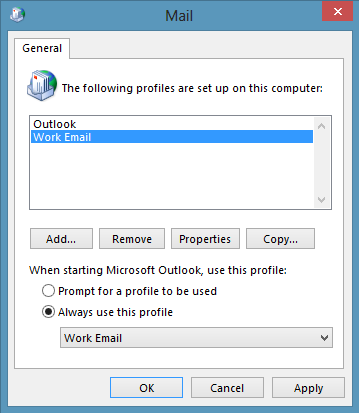
If you would like Outlook to open the new profile by default whenever Outlook is opened, check the button for Always use this profile and select your new profile from the list and click OK.
If you would like to toggle between the profiles and be prompted every time Outlook is opened for a profile selection, click Prompt for a profile to be used and Outlook will ask which profile you would like to use when opened.
Click Apply and OK when finished.
Congratulations! You have successfully setup Outlook.
